
Scheduling your inspection is more accessible than ever!
Have your permit number and inspection code ready
Your permit number is printed at the top left of the permit document, and permit-specific inspection codes can be found on the second page of your permit document.
You may schedule inspections up to 5am on the day of the requested inspection or up to five (5) working days in advance.
If you have a preference between a morning or afternoon appointment, please indicate so in your inspection request. We will make every attempt to accommodate your request; however, arrival times may vary.
Schedule by Phone
Dial (916) 478-2225, 24 hours a day, 7 days a week
Press 1 to schedule an inspection
Press 2 to cancel or reschedule an inspection
Press 3 to obtain inspection results
The system will prompt you each step of the way. You may perform multiple transactions during each call.
View Daily Scheduled Building Inspections
Inspection Codes List
Use Combination Inspection Codes whenever possible. Using these codes can eliminate having to request multiple inspections. Please use only if the appropriate codes are listed adjacent to the name.
Building Codes
- Foundation/Footings/Setbacks 101
- Slab On Grade 102
- Rough Frame 104
- Masonry Walls 105
- Tilt Up Panel 106
- Panel Closure 107
- Roof Nails 108
- Shear Walls 110
- Drywall Nail/Screw 111
- Insulation– Walls And Floors 115
- Track/Ledger/Patio 117
- Floor Nail 118
- Lath 121
- Roof Sheeting 122
- Shear Walls/Hardware/Roof Diaph 123
- Siding 127
- Temporary Certificate Of Occupancy 128
- Final Other 180
- Miscellaneous Struct/Siding 190
- Final (With Plumb/Elec/Mech) 199
Electrical Codes
- Grounding/Bonding/Ufer 220
- U/Slab U/Conduit 221
- Underground Service 222
- Rough Electrical 223
- Meter Connect/Meter Tag 226
- Temporary Power 228
- Light Standard Footing 232
- Underground Conduit 233
- Final 299
Plumbing Codes
- Ground Plumbing 340
- Sewer Test 341
- Water Service 342
- Drain Waste And Vent 343
- Tub/Shower Hot Mop 345
- Grease Traps/Interceptors 346
- Backflow Prevention 349
- Water Heater 350
- Gas Test 352
- Gas Meter Tag 353
- Rough Plumbing 356
- Gas Piping (Underground) 357
- Water Softener 398
- Final 399
Mechanical Codes
- Fire Dampers 462
- Commercial Hood 463
- Hood Shaft/Hood Duct 464
- T-bar Ceilings 467
- Underfloor Ducts 470
- Miscellaneous/Rough Mech 490
- Final 499
Swimming Pool Codes
- Pre-gunite 580
- Pool Deck 581
- Pre-plaster 582
- Equipment Bonding 584
- Structural Pool Final 598
Combination Inspection Codes
- Combo Foundation/Setbacks
Ufer/Ground Elec/Ground Plumbing
001 - Combo Sewer/Water Service(s)
003 - Combo Frame/Rough Elec/Mech/Plumbing
004 - Combo Shear Wall/Roof Nail
005 - Combo T-bar Ceiling/ Rough Elec/Rough Plumbing/ Misc Mechanical
119
Scheduling Instructions for eTrakit
Don't have an account?
You will need one to schedule inspections online.
General Public Account
Members of the public can register directly through the site.
Licensed Contractors Account
Licensed contractors must apply for an account through the City.
- After submitting the Licensed Contractor Registration form, you’ll receive a confirmation email.
- Processing takes up to 48 hours.
- Once registered, you’ll receive a username and instructions to access the site.
-
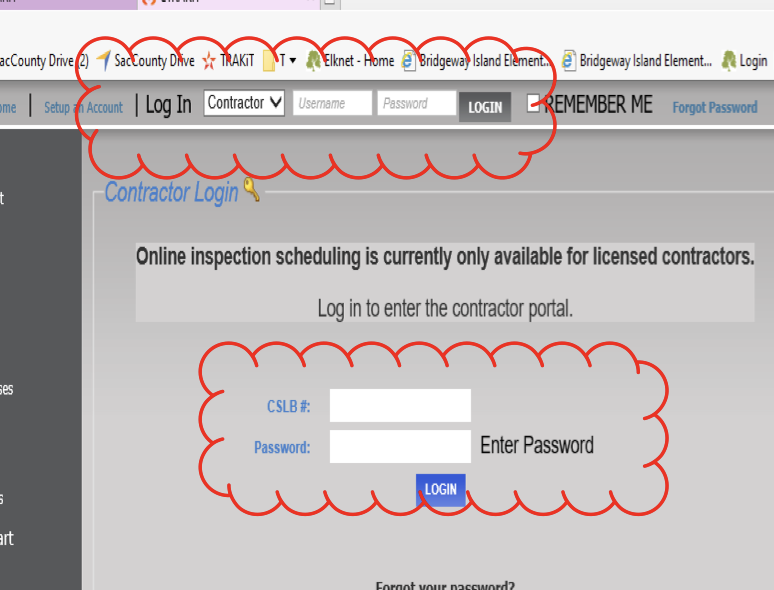
Log in to eTrakit.
Enter your username (your contractor’s state license number) and password.
-
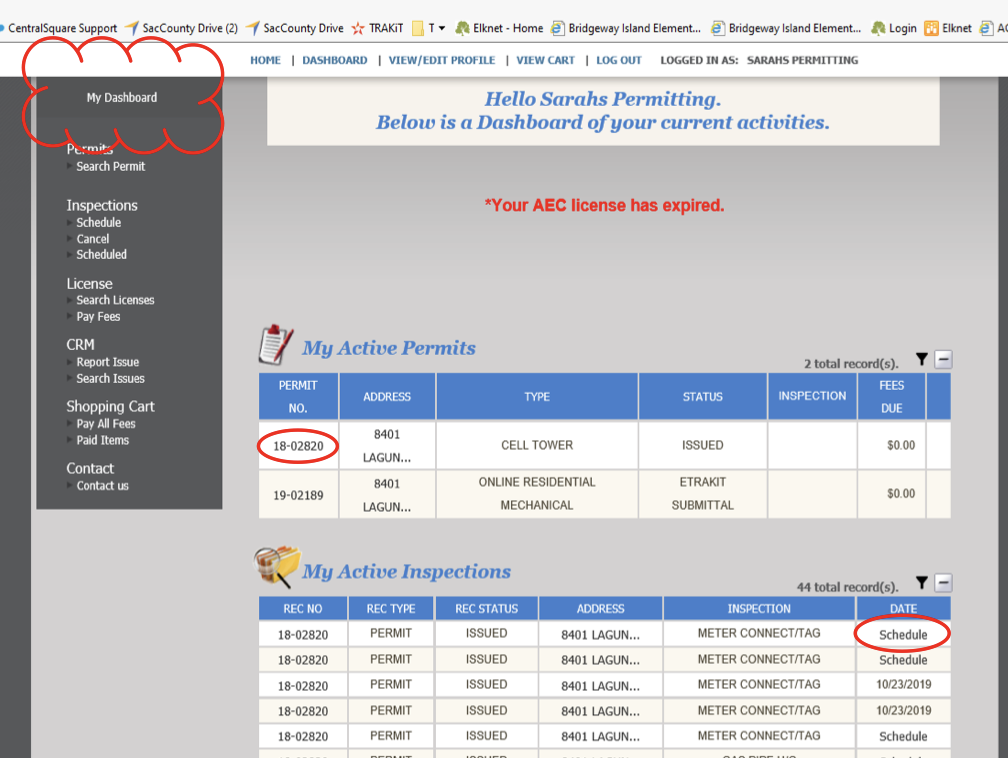
Go to your Dashboard.
After logging in, your Dashboard should appear. If it doesn’t, click My Dashboard at the top left of the page.
-
View your permit information.
Under My Active Permits, click your Permit Number. You can browse the tabs to see details about your permit.
-
Schedule an inspection.
Under My Active Inspections, find the inspection you want and click Schedule on the right side.
-
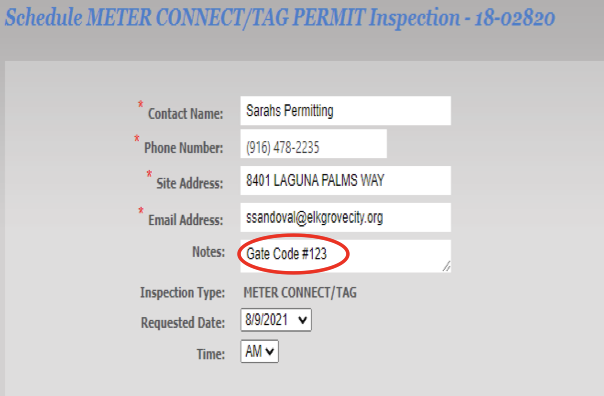
Check your inspection details.
Make sure all the information is correct. Update any fields if needed. Add special notes, such as gate codes, in the Notes box so the inspector can access the property.
-
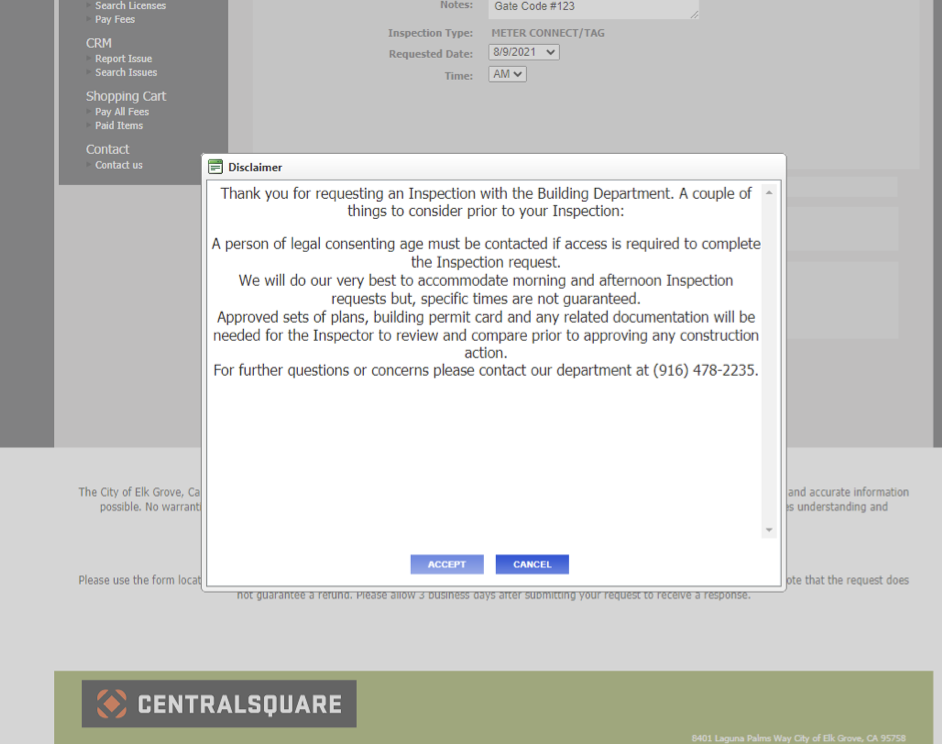
Read and accept the disclaimer.
You must accept the inspection disclaimer to continue.
-
Confirm your inspection.
After accepting, you’ll return to your Dashboard. Your scheduled inspection will appear there, and you’ll also receive a confirmation email from the City.
Need Further Assistance?
Call (916) 478-2235 or email Monday through Friday from 8am to 5pm.